iPhone Charger Not Working? (Definitive Guide — Why It Happens & How to Fix It)
Nothing's more frustrating than plugging in your iPhone and seeing no charging indicator or no response at all. Whether it's your trusty original charger or a new certified cable, this problem affects many users — from iPhone 8 to iPhone 17 models. Let's unpack why it happens and how you can fix it (often without a trip to Apple Support).
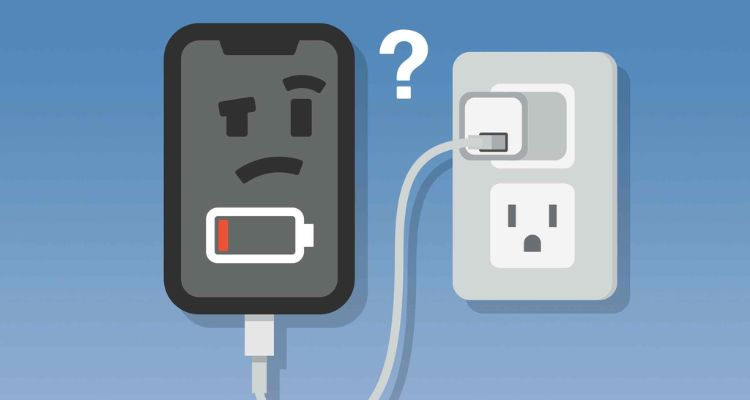
Before diving deep, try these quick checks first — they solve many cases instantly:
① Unplug and re-plug the charger firmly.
② Try a different wall outlet or USB port.
③ Try a different certified cable or charger.
④ Let the phone charge for at least 30 minutes if completely dead. →Apple Support
If none of these work, keep reading — the following are the most common real-world causes.
2. Faulty Cable or Adapter (Most Frequent Cause)
Your cable or charger might look fine but still be the culprit:
·Internal wires break after wear & tear
·Frayed connectors or loose ends
·Cheap or non-certified accessories can behave unpredictably
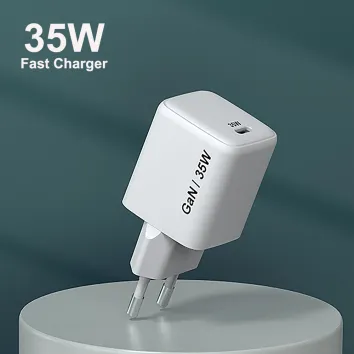
✔ Try an Apple-certified (MFi) or reputable third-party lightning/USB-C cable with a known good charger. →More methods
Community Insight
Some users report that certain chargers will work on smaller devices (like AirPods) but not on their iPhone, indicating partial connectivity or mismatched power delivery.
Lee mas
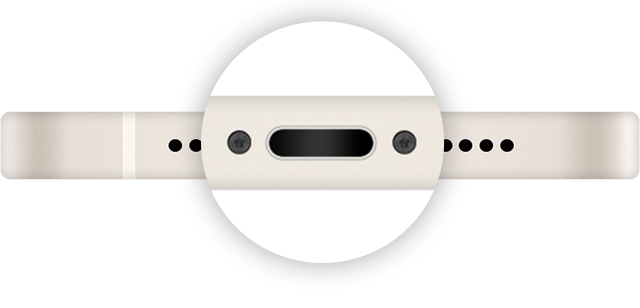
Since the charging port (Lightning or USB-C) is exposed to the environment, lint, dust, and debris can accumulate and block electrical contact.
How to fix:
·Power off your iPhone
·Gently use a soft brush, toothpick, or compressed air to clear debris
·Do not use metal objects that could damage delicate pins
💡 Light shining into the port is a good way to check for obstructions.
4. Software Glitches & iOS Issues
Sometimes hardware works fine — the problem is software.
·iOS bugs can prevent charging detection
·Background processes or power management glitches interfere
·Some users found charging only worked after a force restart or update
Steps to reset software:
·Force restart your iPhone (volume up → volume down → hold side button)
·Update iOS via Settings > General > Software Update
5. Battery Health or Degradation
Aging batteries don't always charge properly — they may struggle to hold charge or take power at all.
🔋 Check Settings > Battery > Battery Health to see if the battery capacity is severely degraded — if it's below ~80%, replacement might be recommended.
6. Power Source or Outlet Issues
Charging may fail not because of your iPhone or cable — but because of the power source:
·Faulty wall outlet
·Loose power strips
·Airplane or low-current USB ports
✔ Always try a known good outlet and a reliable charger.
7. Overheating or Extreme Temperatures
iPhones will stop charging automatically if the device is too hot or too cold (outside ~32°–95°F).
➡ If your phone feels very warm, move it to a cooler area and plug it in again later.
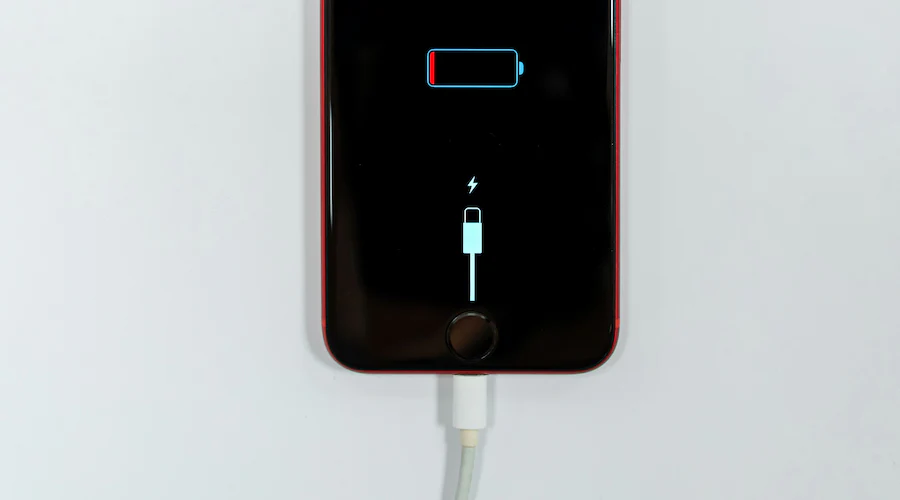
Counterfeit or cheap chargers not only can fail to charge, they can be dangerous:
·Risks include short circuits, electric shock, or even fires
·Fake chargers often contain inferior components or no safety protections. →For example...
🛑 Always use Apple-certified or reputable branded chargers.
9. When the Charging Port Itself Is Damaged
Physical damage from drops or wear can break the charging contacts.
Signs of port damage:
·Works only at certain angles
·Only charges wirelessly but not by cable
·Visible bent or broken pins inside the port
In community posts, many users report requiring port repair after years of use or accidental rough handling.
10. Troubleshooting Checklist (Step-By-Step)
Step 1 – Use a different certified cable + charger
Step 2 – Try another power outlet
Step 3 – Clean the charging port carefully
Step 4 – Restart or force restart your iPhone
Step 5 – Update iOS
Step 6 – Try wireless charging to rule out port issues
Step 7 – Check battery health
Step 8 – Visit Apple Store or Authorized Service
Most problems are solved by steps 1–4.
11. iOS Alerts & "Slow Charger" Messages
In iOS 26 and later, you may see a "Slow Charger" alert when the iPhone detects an underpowered or incompatible adapter. This is a software feature to guide behavior, not a hardware malfunction.
To eliminate the alert, use a proper Apple or certified third-party charger.
12. Wireless Charging Works — But Cable Doesn't?
If wireless charging consistently works (and wired doesn't), this points strongly to:
·Charging port issue
·Cable/connector mismatch
·Dirty contacts inside port
·Adapter compatibility issue
Wireless charging being functional can help isolate the problem.
13. When to Seek Professional Help
If none of the above fixes work:
🔹 Charging port may be damaged
🔹 Internal hardware failure
🔹 Battery needs replacement
Visit an Apple Store or Apple Authorized Service Provider — they can diagnose dock, ports, and battery health with specialized tools.
FAQ — Quick Answers
Q: Why won't my iPhone charge but other devices do?
It could be port debris, cable mismatch, software glitch, or battery health issues specific to your iPhone model.
Q: Does iOS affect charging?
Yes — iOS updates and bugs can affect charging detection. Restarting or updating can fix it.
Q: Can cheap chargers damage my iPhone?
Possibly — counterfeit or uncertified chargers can cause safety hazards and erratic charging.
Q: Why does my iPhone stop charging at 80%?
Your iPhone may pause charging around 80% as part of its battery health features—like Optimized Battery Charging or Charge Limit—to preserve long-term battery lifespan. Additionally, if the phone senses it's in a warm environment, it may hold at 80% to avoid overheating. If you prefer to fully charge, you can disable these features in Settings > Battery > Charging.
Conclusion — Smart & Safe Charging
If your iPhone charger isn't working, don’t panic. Most causes are simple — cables, ports, software, or power sources — and can be resolved with step-by-step troubleshooting. But always use certified gear and avoid counterfeit accessories to keep your device and your home safe.